Distinct Tab Colors, Numbers Where You Want Them
A tab color is useful when you can recognize it in a thin highlight, not just in a large swatch. Nash 0.13.11 brings a more distinct built-in color set, larger picker previews, and a choice of where tab numbers sit.
Choose Between Hues, Not Near-Duplicate Shades
Open the command palette with SUPER+Shift+P and choose Tab Color. The
picker now offers 12 colors in hue order:
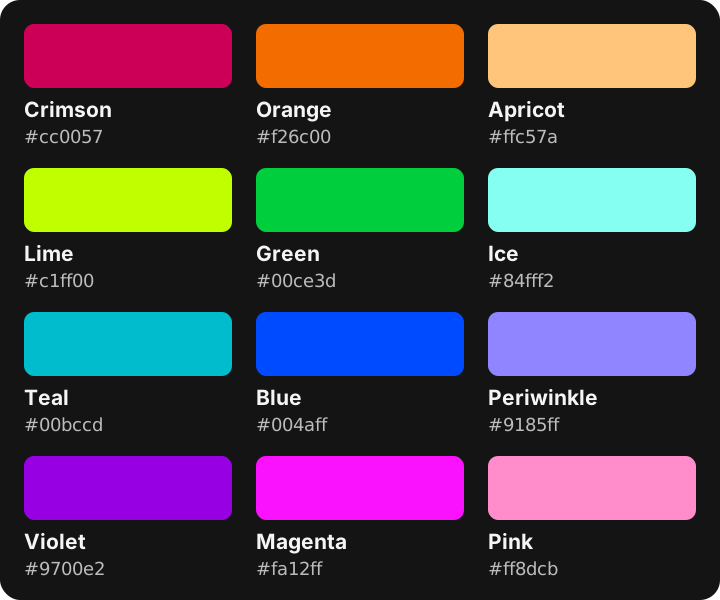
The set replaces crowded groups of similar reds, blues, and purples. Its colors are separated in both perceptual color distance and hue, so the choice is less dependent on noticing a small difference in brightness. Larger preview dots make the swatches easier to inspect before applying one. This is not a guarantee that every pair is distinguishable for every viewer; keep meaningful tab titles as well as color cues.
Existing tabs are not recolored by the update. If a tab uses a shade that is no longer in the built-in set, the picker shows it as Current Custom Color (Current). Choose another swatch to replace it, or Default to clear the custom color and return to the theme.
If you handle command-palette-apply-tab-color in Lua, check any comparisons
against built-in color keys: the picker now sends the keys of the new set.
Put the Number Beside the Information You Read
The tab-number chips introduced in 0.13.7 no
longer have to stay at the right edge. Merge position into the existing
[tab.index] table in ~/.config/nash/nash.toml:
[tab.index]
position = 'after_title'
Choose one of three placements:
| Value | Placement |
|---|---|
left | Before the tab title |
right | At the right end, before the close button; the default |
after_title | Immediately after the visible title text |
Position does not change the tab width. With left and show = 'on_super',
Nash reserves the chip's space even while the number is hidden, so holding
Command does not make the title jump. With after_title, a long title pushes
the chip toward the close button, as in the right-hand layout.
Changes apply on configuration reload. Chip placement does not alter the shortcuts or the ability to select a multi-digit tab number while holding SUPER.
Double-Click a Tab to Resize the Window
In windows with INTEGRATED_BUTTONS|RESIZE decorations, including the macOS
default, a double-click on a tab now maximizes or restores the window, just like
the empty part of the tab bar. An inactive tab becomes active on the first
click. Both clicks must hit the same tab or the empty bar without a drag between
them; a fullscreen window stays fullscreen.
See tabs and windows for tab controls and tab appearance for title sizing, highlights, and background settings.